Make SonarCloud quality gate fail GitHub Actions
Learn how to configure your GitHub Actions workflow so it fails when your SonarCloud quality gate fails rather than passing on a successful scan upload.
Table of Contents6 sections
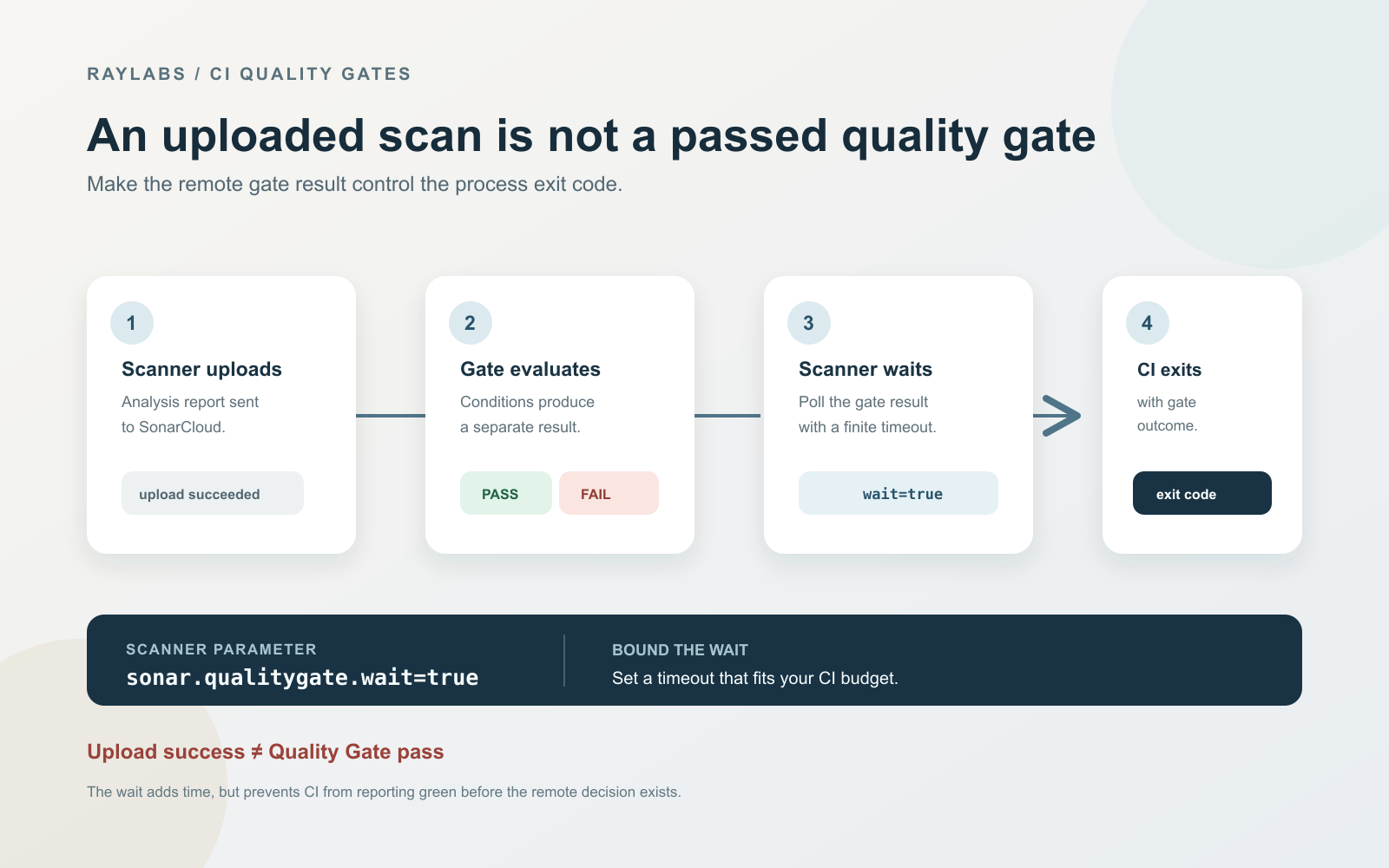
Your GitHub Actions workflow can report success even when your SonarCloud quality gate fails because a successful scan upload does not mean the code passed the gate.
Quick solution:
Add sonar.qualitygate.wait=true to your scanner invocation and set a finite timeout to make the scanner poll for the gate result.
- name: SonarCloud Scan
  uses: sonarsource/sonarcloud-github-action@master
  env:
    GITHUB_TOKEN: ${{ secrets.GITHUB_TOKEN }}
    SONAR_TOKEN: ${{ secrets.SONAR_TOKEN }}
  with:
    args: >
      -Dsonar.qualitygate.wait=true
      -Dsonar.qualitygate.timeout=300
Prerequisites include having a valid SONAR_TOKEN configured in your repository secrets and running the scan after your test and coverage reports are generated.
Why Scan Uploaded Does Not Mean Quality Gate Passed
A common issue in continuous integration pipelines is the decoupling of analysis submission from analysis evaluation. When a CI runner executes a code analysis scanner, the default behavior of many scanner tasks is to upload the raw report to the remote service and immediately exit with a success code as long as the network request succeeds.
In a real implementation case, a project reported new-code coverage at 79 percent against a strict 80 percent threshold. The scanner step successfully uploaded its analysis payload to SonarCloud, and the workflow continued to finish with a green status. The deployment pipeline treated the upload confirmation as a passing build, hiding the underlying quality violation from developers.
Enable Gate Polling in Your Scanner Invocation
To bridge the gap between uploading data and evaluating rules, the scanner must instruct the remote server to process the uploaded payload and return the resulting status before terminating the build step. This prevents the pipeline from proceeding if the project violates its defined metrics.
By adding the wait parameter to your command or action arguments, the scanner enters a polling loop. It checks the analysis identifier against the SonarCloud API until the server finishes calculating the quality gate status.
Choose and Diagnose a Bounded Timeout
Polling a remote server indefinitely risks hanging your continuous integration pipeline if the analysis service experiences delays or if queued tasks take longer than expected. Setting a maximum duration protects your build budget.
The default timeout documented by SonarSource is 300 seconds, which gives the server five minutes to complete the background evaluation. If your project is exceptionally large and requires more time for analysis computation, you can adjust the timeout property upward while keeping it strictly bounded.
When a timeout occurs, the scanner exits with an error status. This forces the CI job to fail rather than silently bypassing the check. You should examine your remote project settings if timeouts happen frequently, as it usually points to slow server-side processing or network bottlenecks.
Confirm the Coverage Report Is Present
Waiting for a quality gate is only effective if the metrics being evaluated are accurate and up to date. For instance, if your quality gate includes a condition on unit test coverage, the coverage XML or exec report must be generated and imported during the build steps that precede the scanner task.
If the report is missing or placed in an unindexed directory, SonarCloud may evaluate incomplete data or fall back to previous baseline numbers. Always verify that your build output logs show successful test execution and report discovery before the analysis step runs.
Verification Checklist
- CI waits for the Quality Gate outcome using the polling flag.
- The wait configuration includes a bounded timeout value.
- The implementation addresses a concrete coverage or quality threshold failure.
- PR verification reports a failed status when metrics drop below requirements.
Continue Exploring
You Might Also Like
breadcrumblist JSON-LD Synchronization and Maintenance
Learn how to keep visible breadcrumb trails and JSON-LD structured data synchronized by generating both from a single source of truth.

Fix Android WebView onShowFileChooser Overlapping Callback
Learn how to correctly manage Android WebView onShowFileChooser callbacks, handle overlapping chooser requests, complete cancellations, and process URI results safely.

Polling Cursor Checkpoint Crash Halfway Through Page
Learn how to handle mid-batch crashes during API polling by separating retrieval progress from side-effect completion and tracking per-item recovery evidence.